

Before you begin, make sure you have access to:
- A multimodal AI model with image support: Claude, GPT-4o, or Gemini (any works)
- An image generation tool: Nano Banana, Midjourney, DALL·E 3, Stable Diffusion, or Ideogram
- A reference image that captures the visual style you want
What we solve in this guide
When generating AI images using text prompts, the results are inconsistent by the nature of natural language. minimalist illustration, warm colors means something different to the model in every run. Your visual brand looks chaotic.
The Solution: Extract the stylistic parameters of a reference image as a structured JSON object and inject it into every future prompt. The model receives precise instructions instead of vague interpretations.
Step 1: Find the reference image
Find an image that represents exactly the visual style you want. It doesn't have to belong to you - you're only using it as a stylistic reference for analysis, not as a source to copy.
Great places to look:
- Dribbble.com - UI/UX illustrations, flat design, branding
- Behance.net - complete visual identity projects
- Pinterest - curated collections on any aesthetic
- Mobbin.com - UI screenshots from real apps
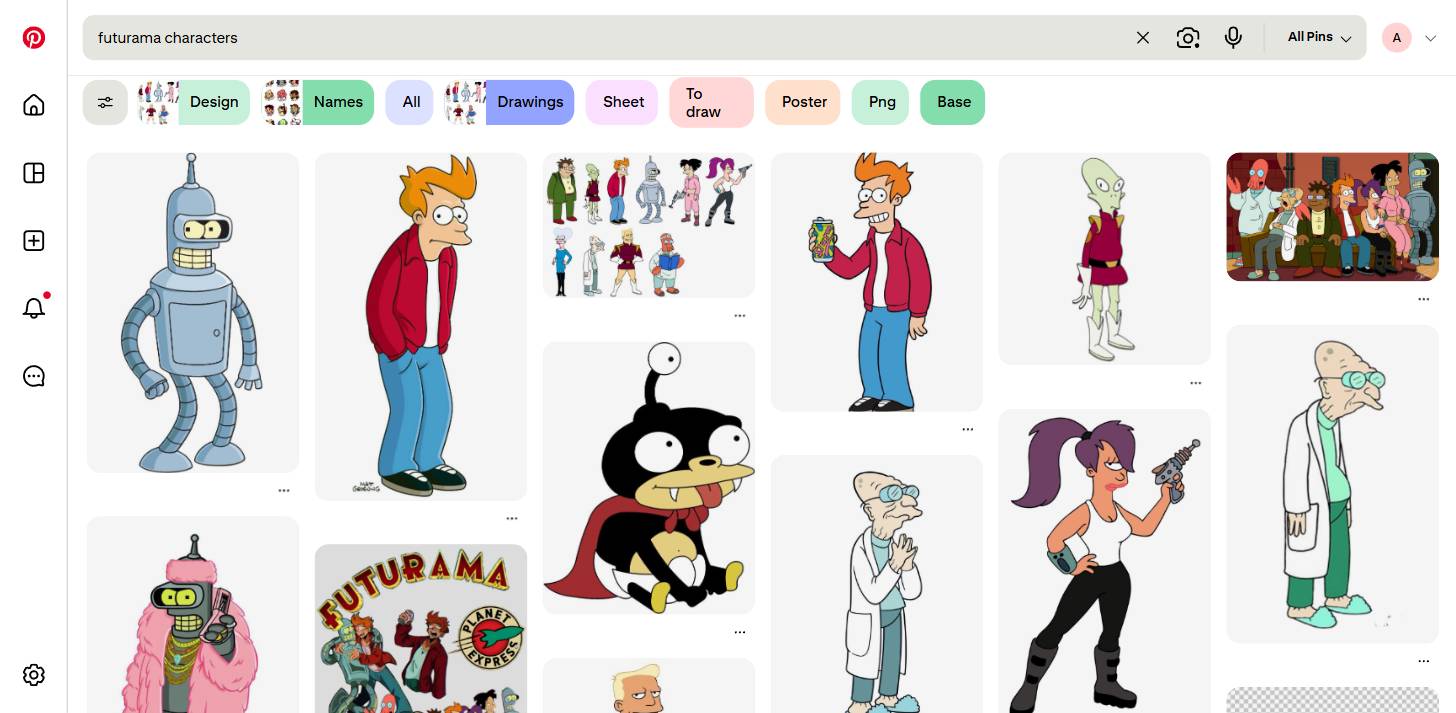
Save the image locally. You will upload it in the next step.
Example: For this tutorial, we use the 2D animation style from the Futurama series - thick black outlines, exaggerated proportions (large head, compact body), saturated palette with strong primary colors, flat shadows without gradients.
Step 2: Open the AI model and upload the image
Open claude.ai, chatgpt.com, or gemini.google.com and start a new conversation.
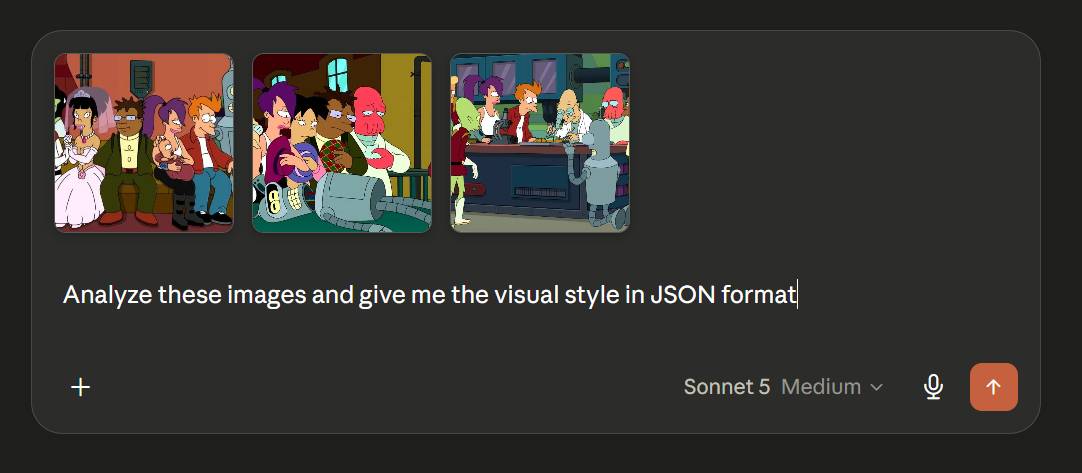
You can attach a single image - it works. But if you want a more precise result, attach 3–5 images from the same style: the model will identify what is consistent among them.
Then send the prompt:
Analyze this image / these images and give me the visual style in JSON format.
Step 3: Receive and save the JSON
The model will return a JSON object. Here is exactly what we received when we analyzed the reference image from the example:
{
  "visual_style": {
    "medium": "2D digital cel animation",
    "source_style": "Futurama (animated sitcom) art style",
    "line_work": {
      "type": "bold, clean outlines",
      "weight": "medium-thick, consistent width",
      "color": "dark brown/black, rarely pure black"
    },
    "color_palette": {
      "saturation": "high",
      "approach": "flat color fills with minimal gradients",
      "skin_tones": "exaggerated/non-naturalistic (e.g. green, red, orange skin for aliens/robots)",
      "background_tones": "warm, muted (browns, teals, olive greens)",
      "shading": "simple cel-shading, occasional soft ambient occlusion in newer frames"
    },
    "character_design": {
      "proportions": "large heads relative to body, big expressive eyes",
      "eyes": "oversized, oval, minimal detail, key emotional carrier",
      "facial_features": "simplified, exaggerated (large noses, jaw shapes distinct per character)",
      "body_shape": "simplified anatomy, rounded limbs, consistent silhouette per character",
      "expression_style": "exaggerated for comedic/dramatic effect (bulging eyes, deadpan stares)"
    },
    "rendering_technique": {
      "shading_style": "flat cel-shading with hard-edged shadows",
      "highlights": "minimal, mostly on glossy surfaces (robot metal, glass)",
      "texture": "smooth, no visible brush texture",
      "lighting": "simple directional lighting, soft cast shadows"
    },
    "composition": {
      "framing": "wide ensemble shots, characters arranged in a horizontal line or cluster",
      "depth": "shallow, layered background/midground/foreground with soft blur or flat color separation",
      "camera_angle": "eye-level, static 'sitcom' framing"
    },
    "setting_design": {
      "environments": "industrial sci-fi interiors (pipes, monitors, metallic panels)",
      "color_coding": "cool background tones (teal, blue) contrasted with warm character tones"
    },
    "mood_and_tone": "comedic, satirical, science-fiction sitcom aesthetic",
    "distinguishing_elements": [
      "robots with rounded metallic bodies and analog-style face plates (e.g. Bender-type design)",
      "one-eyed alien humanoid character design (Leela-type)",
      "mutant/humanoid variety signaling a diverse sci-fi cast",
      "period stylization consistent across theatrical and TV episode art"
    ]
  }
}
Once you have the JSON, you have two options to use it moving forward:
- Save it in a
.jsonfile and attach it directly in future prompts — just as you would attach an image - Copy-paste the JSON content directly into the prompt, before the subject you want to generate
If the JSON looks wrong (text outside braces, added explanations, broken format): send a short follow-up:
Return only the JSON object, without any other text.Or restart the conversation and try again.
Step 4: Build the generation prompt with the injected JSON
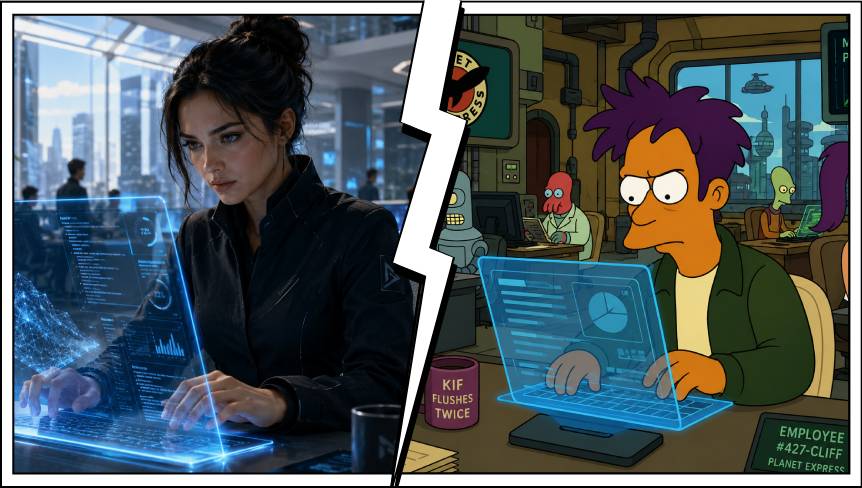
Open your favorite generation tool - and describe what you want to generate. Add the style in one of two ways:
Variant 1 — attach the JSON file (if the platform supports file uploads, like Claude or ChatGPT):
Generate an image of a character working at a holographic laptop,
focused expression, futuristic open office in the background.
Use the style defined in the attached JSON file.
Variant 2 — paste directly in the prompt (for Midjourney, Ideogram, or any tool without upload):
Generate an image of a character working at a holographic laptop,
focused expression, futuristic open office in the background.
Use this style: {paste JSON here}
Bonus: JSON for video styles
The same technique works for video generators (Sora, Kling, Runway). Take a reference clip, capture some representative frames, and ask the AI to analyze the style. The JSON for video includes additional parameters:
{
  "video_style_profile": {
    "visual_treatment": "cinematic, shallow depth of field",
    "color_grading": {
      "look": "teal and orange, low contrast",
      "shadows": "lifted, never pure black",
      "highlights": "slightly desaturated"
    },
    "motion": {
      "camera": "slow, deliberate - no handheld shake",
      "cut_pace": "slow, 4-8 seconds per shot",
      "transitions": "cut only - no dissolves or wipes"
    },
    "composition": {
      "framing": "wide establishing, then medium close-up",
      "rule_of_thirds": "strict"
    },
    "prompt_keywords": [
      "cinematic", "shallow DOF", "teal orange grade",
      "slow motion", "professional", "clean"
    ],
    "negative_keywords": [
      "shaky cam", "jump cut", "heavy vignette", "oversaturated"
    ]
  }
}
You use prompt_keywords and negative_keywords directly in the prompt of the video generation platform.
Common mistakes and how to avoid them
Putting too much text in the prompt. If you inject the complete JSON with all the fields, the prompt becomes too long, and the model loses sight of the subject. Compress - extract only style_keywords, negative_keywords, colors, and 2–3 critical parameters.
Expecting mathematical precision from colors. A HEX code in JSON doesn't guarantee the model will reproduce exactly that color. It works as a direction, not as an exact specification. If the color is critical, post-process in Photoshop or Figma after generation.
Using the same JSON for all formats. A JSON optimized for 16:9 blog illustrations doesn't work identically for 9:16 Stories or square thumbnails. Create separate variants for each output format.
Not versioning. If you modify the JSON and the results worsen, you want to be able to revert. Always save the previous version.
Conclusion
You now have a repeatable 4-step system: source image → AI analysis → saved JSON → injected prompt. You no longer describe the style from memory at every generation. You no longer get random results. You have a visual identity document that anyone on the team can use.
Treat the style JSON as a brand asset - just as valuable as a logo or a color guide. Version it, update it when the visual direction evolves, and keep it accessible to the team.
At Prezent Digital, we build content and automation systems that also include AI visual identity management. If you want to implement a similar workflow for your brand, contact us.